Architects
Connect design phases, drawing reviews, consultant responsibilities, and client milestones. Keep an eye on delivery across every live project.

One AI-powered project management workspace for the whole journey: the brief, the plan, the people, the purchases, and the handover.
Connect design phases, drawing reviews, consultant responsibilities, and client milestones. Keep an eye on delivery across every live project.
Carry the brief through material decisions, BOQs, furniture orders, installations, and approvals. Keep scope and spend together as the details evolve.
Coordinate site tasks, teams, vendors, and deliveries. Follow payments and changes through execution, snagging, and the final handover.
Start with the information you already have. ArchiTrack brings AI-assisted setup and reusable templates into the same workspace where your team will deliver the project.
Upload Excel, PDF, Word, or CSV. AI proposes a project structure with phases, tasks, orders, vendors, and payment records. Review the extracted details before importing them into a new or existing project.
Describe the type of project, its size, and scope. Preview an AI-generated starting plan, then adjust the phases, milestones, tasks, orders, and payment estimates to fit the actual job.
Choose an existing template or save a project as a template for future work. Your team can start from a familiar structure and adapt it to each new brief.
Explore the real workflow. Select a step, then click the screenshot for the full view.


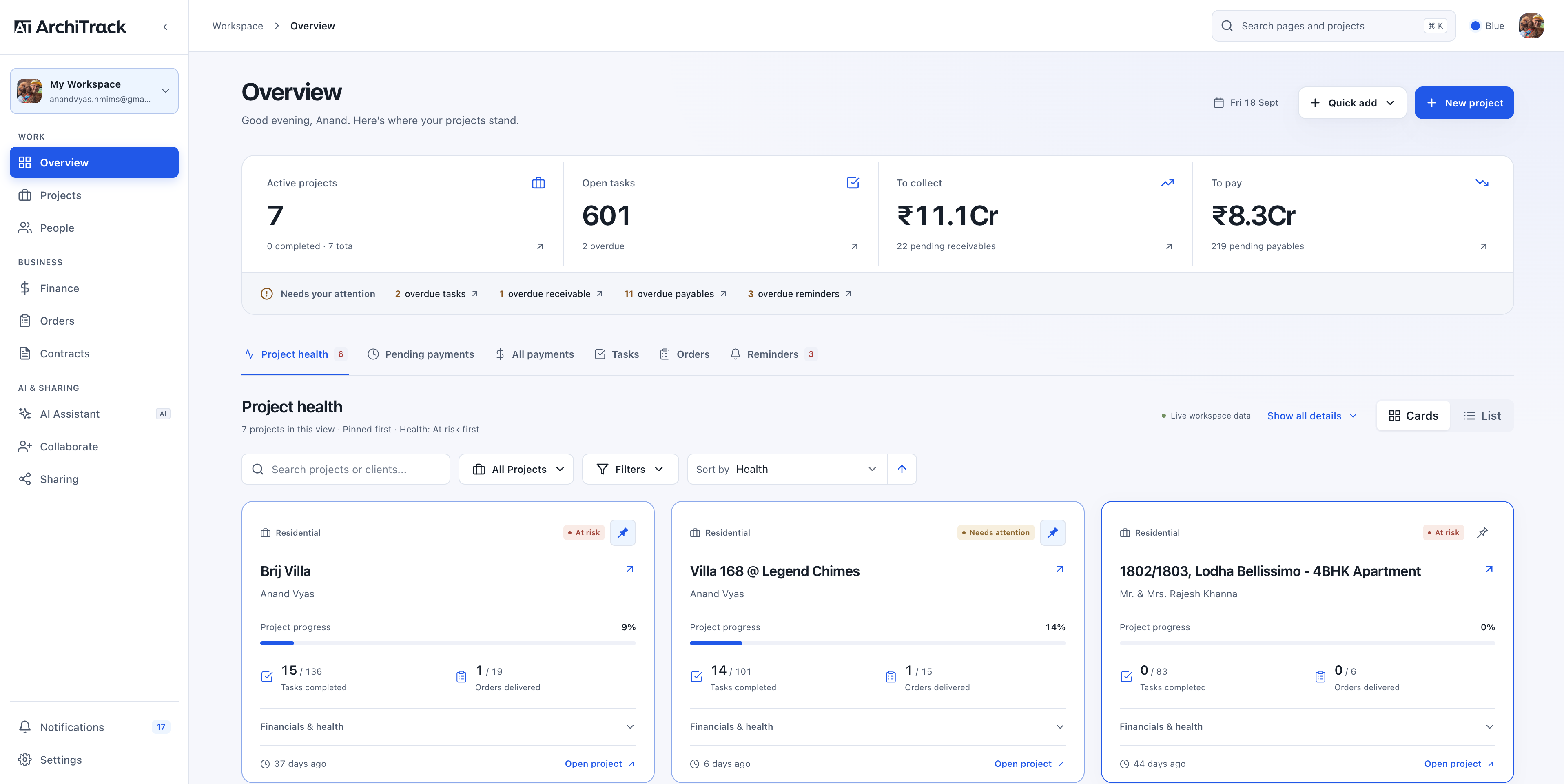
A clear plan is useful only when it stays connected to the work. Move from a workspace-wide view into the phases, tasks, and decisions inside an individual project.
The overview brings project health, open tasks, collections, and payables together. Pin priority projects, sort the list, filter by what matters, and expand financial details when you need them.
Break a project into phases and milestones. Use the timeline and Gantt view to understand dates, progress, and how the work is taking shape.
Group tasks, assign responsibility, set priorities and due dates, and switch between task lists and Kanban. Keep attachments, comments, and reminders close to the work they support.
Explore the phase plan and its Gantt view. Open either screenshot to see the details.


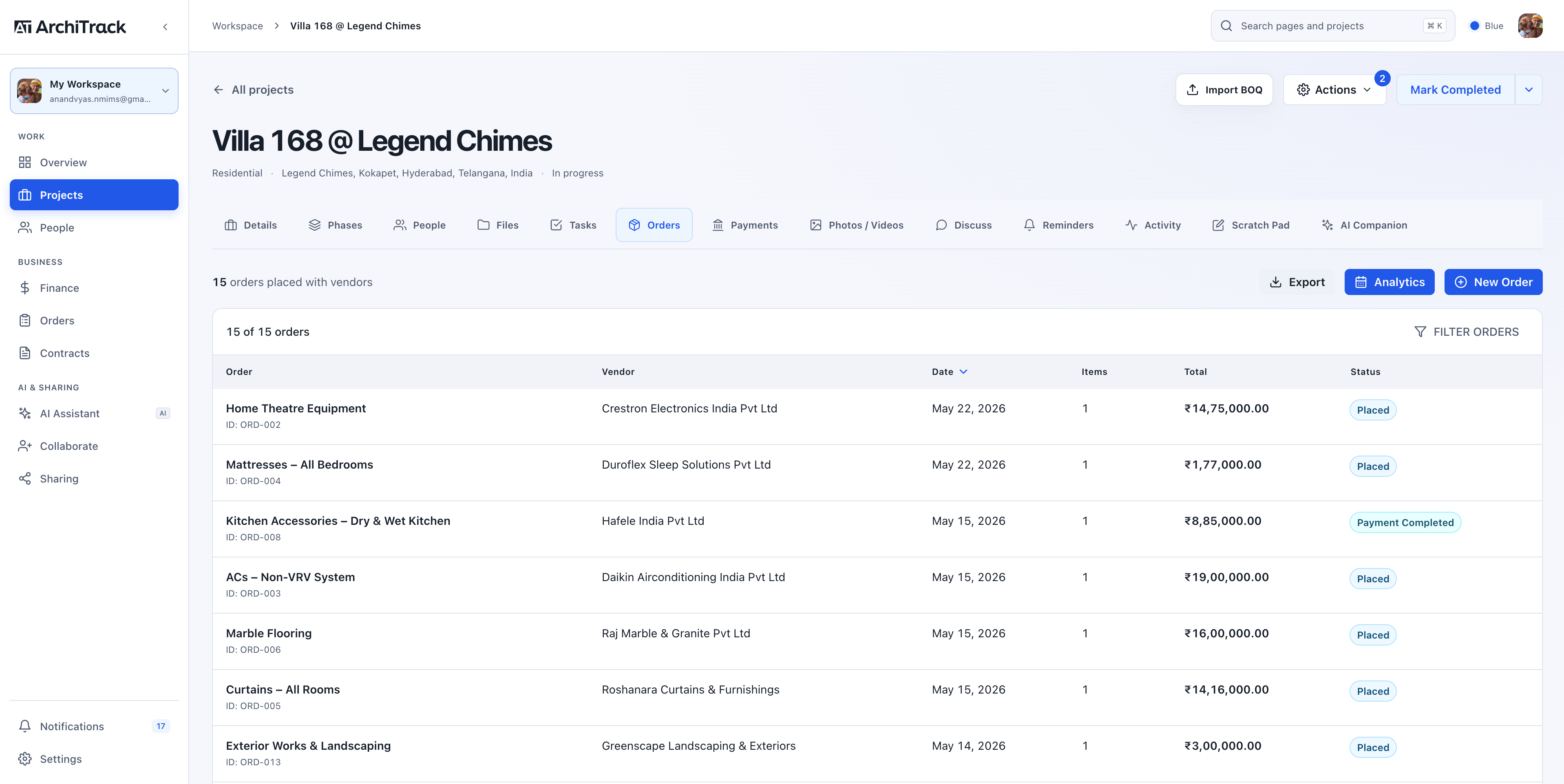
Material decisions, vendor commitments, and deliveries should not live in separate conversations. Orders keep the practical details visible to the people managing the job.
Record order items, quantities, vendors, values, and dates. Follow status through procurement and delivery, with filters to find the orders your team needs to act on.
Connect orders to the relevant vendor and project. Review the supporting details and linked payments without rebuilding the picture from separate spreadsheets.
Use order analytics to review purchasing and delivery status. Export order information when you need to share or work with it outside ArchiTrack.
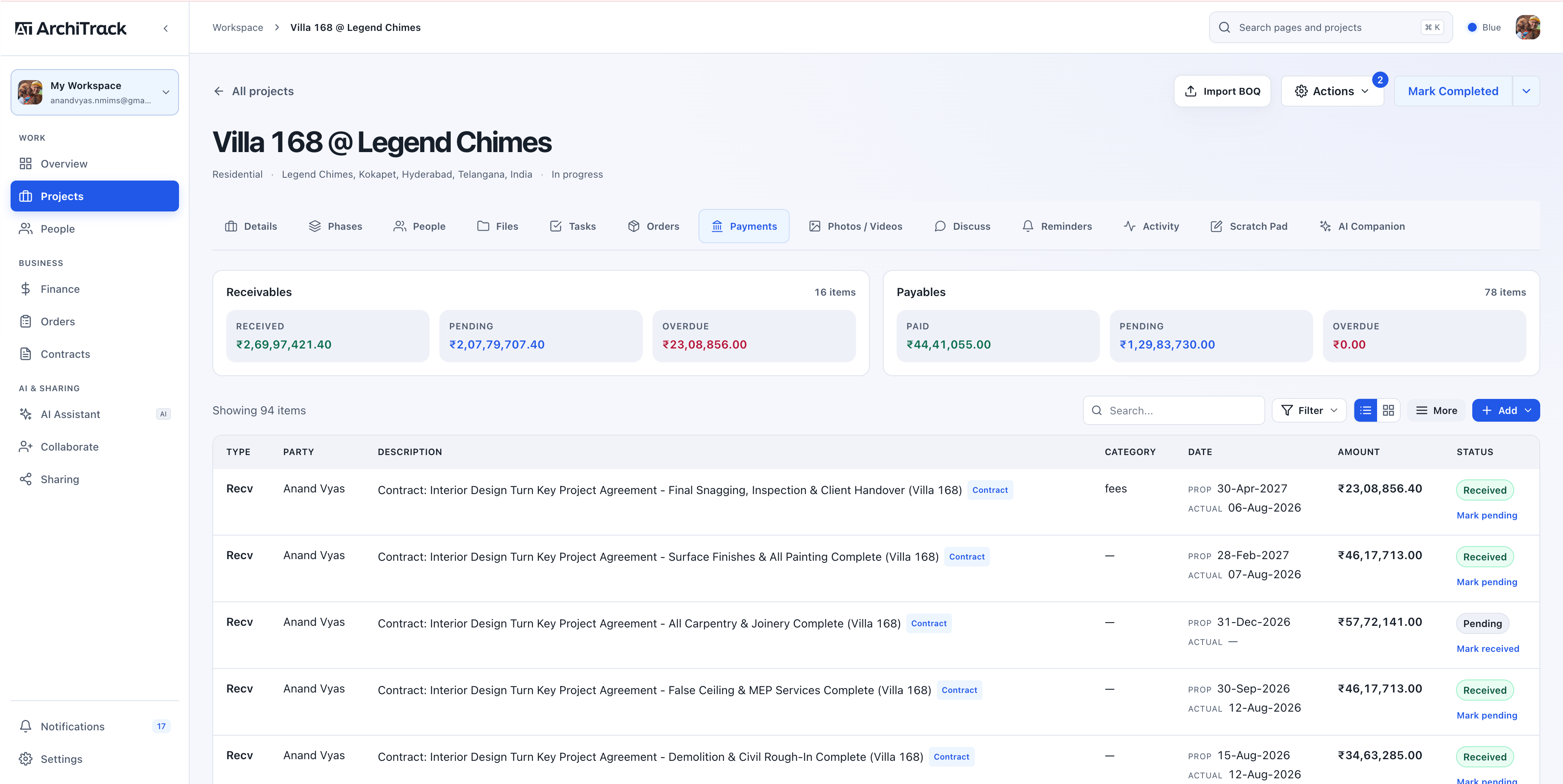
Bring project-level cash flow and workspace-wide financial visibility together, so the commercial side of a project stays as clear as its delivery plan.
Track client collections alongside vendor and team payments. See pending, overdue, and completed amounts, with proposed and actual dates on each record.
Record partial payments and instalments instead of treating every payment as all-or-nothing. Keep invoices, attachments, categories, and the associated party with the entry.
Review financial summaries, budgets, and profitability across your work. Use payment analytics, GST and tax details, filters, and exports to investigate the numbers behind a project.
Keep clients, vendors, teams, and individual team members connected to their projects and responsibilities.
Maintain client details, vendor specialities, team information, and member records. Connect the right people to a project so responsibilities and commercial relationships are easy to find.
Review vendor order and payment activity, team delivery, and member workload through their analytics views. Compare records and spot where a follow-up is needed.
Invite collaborators and work in shared workspaces with the access available to each person. Switch workspaces while keeping your personal appearance preferences separate for each one.
A drawing, a site photograph, and a client approval all carry project context. Keep that context connected instead of losing it in a long message history.
Organise documents in folders and upload new file versions. Keep file-level comments, approval messages, and requests for changes together so reviewers can understand the current decision and its feedback.
Use Discuss for project conversations with replies, mentions, and attachments. Search the discussion to find a decision. Keep working notes in the Scratch Pad and check Activity for the history of changes.
Share a project view with the sections and access you choose. Give clients and vendors a focused place to follow progress, review shared files, and respond. Keep site photos and videos with the project for updates and handover.
Keep the scope you agreed, the documents that support it, and the milestones you are working towards connected to project delivery.
Create and manage contracts with their parties, documents, scope, and commercial details. Keep contract information accessible alongside the project it belongs to.
Break commitments into deliverables and milestone records. Connect contract payment milestones to the project’s financial records so agreed payments remain visible.
Share a contract for review and signing, handle edit or amendment requests, and follow its audit history. Keep later changes traceable with the agreement.
Use AI beyond project setup: understand what is happening across the firm, or make supported updates inside the project you are working on.
Ask about overdue work, project health, outstanding collections, or procurement across the workspace. Choose which data sources the assistant can use. This assistant provides analysis and answers.
Ask a project’s companion to create tasks, change dates, organise phases, update orders, or record payments. It works with that project’s records; review the resulting updates in the conversation and activity history.
Use ArchiTrack’s connection settings to authorise a compatible external assistant, including supported Claude, ChatGPT, and Gemini tooling. Available read and write actions depend on that tool’s setup and permissions.
“What’s the status of all my active projects?” Explore the insights, project summary, and suggested next steps from one workspace conversation.


Follow a real project conversation: mark payment records as paid, document the update, and create a receipt collection reminder. Select a step, then open the screenshot for the full view.


Follow the conversation into Payments, Discuss, and Reminders. Open any view to explore the original screenshot.


Move between the studio, site, and client meeting with the project information you need. Shape your workspace around the way you prefer to work.
Export project reports as PDFs and use the available financial and order exports for focused updates. Give a client or colleague a clear view of the relevant work.
Use the web workspace at your desk and the iOS app when you are on site. Keep project details, tasks, and financial information close between meetings and visits.
Choose Modern SaaS or Aesthetic, then select a palette. Use Light, Dark, or System display mode. Your preference is saved for you in each workspace, and loading states follow the selected theme.
Start with one live project and the parts of the platform that matter to your team.
No. Architects, interior designers, and contracting firms use the same connected platform. Adapt project phases, templates, tasks, and access to your scope, whether you handle design, execution, or both.
Yes. Create and manage projects, tasks, orders, payments, files, and contracts directly. Use AI-assisted setup and companions when they are useful to your workflow.
Yes. Start from your existing BOQ, choose a template, or add the project manually. Review imported information and add the people, files, orders, and payment records you want to track.
You choose the sections and access included in the project view you share. Use the client portal for project updates and reviews, and collaborator access for people working inside the workspace.
Compare project, collaborator, storage, and AI credit allowances on the pricing page. Book a demo to explore the workflow with your firm’s requirements.
Explore the platform around a real architecture, interiors, or contracting workflow.